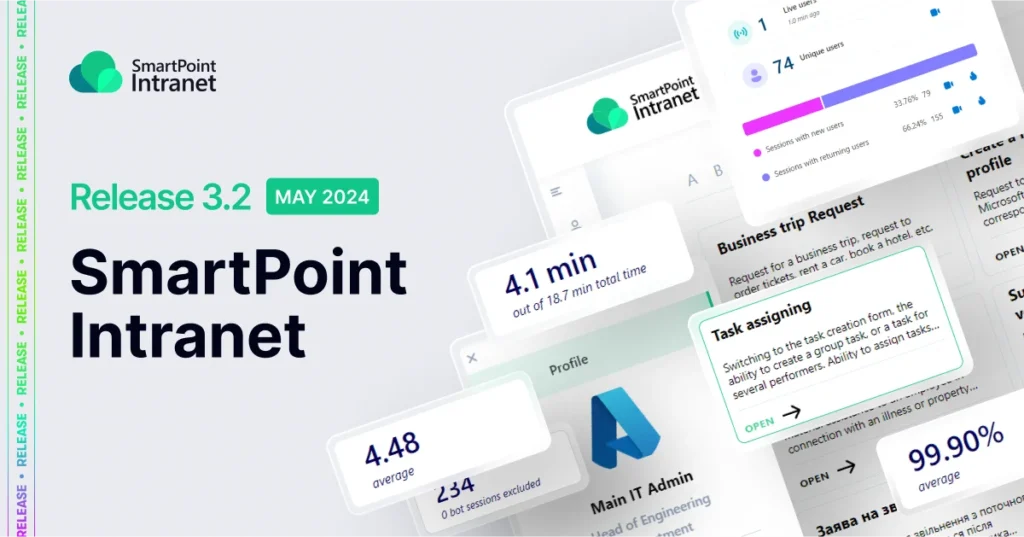
In Release 3.2, our team focused on extending the functionality of the HR module, but the major change is the development of a flexible automation tool – Process Designer, and the integration of an analytical tool from Microsoft – Clarity.
Creation of Process Designer
What was done?
Our experts analyzed user experience and developed a convenient Process Designer, consisting of:
- a separate section in the Personal Account to display cards of existing processes,
- a separate website for building the structure of the Designer and generating a unique set of lists and libraries used in Power Automate flows (a Microsoft tool for process automation),
- a ready-made solution for using forms to create processes developed using Power Apps (a Microsoft tool for creating forms and applications),
- ready-made notification options in Microsoft Teams, a separate block in the Personal Account for direct participants in processes (notification for task approval, informative notifications about changes in the status of an application or its final execution/rejection),
- a prepared base for automatic creation by the Power Automate flow of the required task in the Task Center for the executor of the application or the person responsible for approving a certain step in the process.
We took into account the peculiarities of processes of different organizations in order to create a unified starting Designer for automating the company’s activities with the possibility of further scaling.
The goal of the development was to provide each client with a choice: developing and modifying their processes on their own, using Microsoft Power Automate, Microsoft Power Apps, Microsoft SharePoint, and Microsoft 365 services, or entrusting it to our team.
How does it work?
A visual user interface was created – a separate section in the Personal Account for searching for the required process and running it, taking into account the issued permission. And an administrative interface for setting up the Process Designer.
Depending on the role, you can share your working experience with the Process Designer.
User experience:
- Go to your Personal Account from the web version of the portal or through the portal app in Microsoft Teams.
- In the “Processes” section, find the card of the required process (use search or filtering).
- Click on the process card and automatically go to the application/request creation form.
Users can also track changes in the status of an application or request and receive information notifications in Microsoft Teams or Outlook about the result.
Administrative experience:
- Go to your Personal Account from the web version of the portal or through the portal application in Microsoft Teams.
- In the “Processes” section, open the settings panel and make the necessary changes.
- Go to the process site and create a new process card or make changes to an existing one. Check the status of running requests for the entire company or a specific employee, configure lists and libraries.
Business experience:
- Analyze the company’s existing processes and make changes if necessary.
- Create a diagram to visualize the steps of the process.
- Create flows to automate the steps based on Power Automate described in the diagram (on your own or with the help of the SMART business’ product team).
- Connect flows to process cards.
How will it be useful?
Each company has its own processes that ensure its functioning and development. The main goal of creating a Process Designer is to automate client processes, no matter how unique they may be.
This tool will be useful for any business to start automating routine operations within the company: approving vacations, submitting requests for the purchase of equipment, informing about current malfunctions of a work laptop, and others.
Building your own process structure allows you to further apply this experience to form your own processes, develop and implement your own approach to their automation, or apply universal standards.
Integration of Microsoft Clarity in SmartPoint Intranet
Microsoft’s advanced analytics tool, Clarity, is now available on SmartPoint Intranet. It is a powerful user behavior analysis tool that helps you understand how users interact with your website or Intranet.
What was done?
Now, when implementing a corporate portal, at the client’s request, the SMART business team can configure Microsoft Clarity, and from the first hours of the corporate portal’s operation, you can view analytics on information panels, dashboards, heat maps, session recordings and other components of the tool.
How does it work?
The Microsoft Clarity connection process is simple and fast:
- Configuring Microsoft Clarity for collecting analytics from the corporate portal.
- Assigning accounts that need to be given access to analytics (according to existing roles: Administrator or Participant).
- Direct collection of analytics by the tool.
The Microsoft Clarity interface is quite simple and intuitive. The tool is free and does not require additional licenses. Microsoft has taken care of extensive documentation for the convenience of the user, which is freely available on the learning portal.
How will it be useful?
Using the reliable analytical tool Microsoft Clarity, you will see which sections of the corporate portal are the most in demand and popular, and which require your attention. The tool allows you to track where the user loses interest and leaves the page and where they scroll till the end and focus their attention.
A few examples of why Clarity is effective:
- Making decisions based on the most popular sections among users.
- Checking the effectiveness of content.
- Understanding whether users navigate interface elements well (if there are clicks on inactive elements, if there are clicks on functional buttons, etc.).
- Test publication of a new content format and checking the user’s reaction to it.
- Generating analytics on devices, browsers, regions that users use to go to the corporate portal.
- Using data on the most popular visiting hours to plan the publication of announcements and important news.
Microsoft Clarity is an excellent assistant both for companies just starting to build their HR culture and familiarize their employees with its structure, and for experienced organizations that have a clear vision of the content structure and seek to increase the effectiveness of decisions made depending on where it’s shared.