Release 3.5 was dedicated to expanding the capabilities of the Personal Assistant by introducing a functional Form Builder and adding the ability to save Personal Views in the Task Center. Other improvements include the Checklist and Advanced Comments blocks on task forms, along with real-time task updates without page refreshes. Below are the details:
The Form Builder has been created
- What was done?
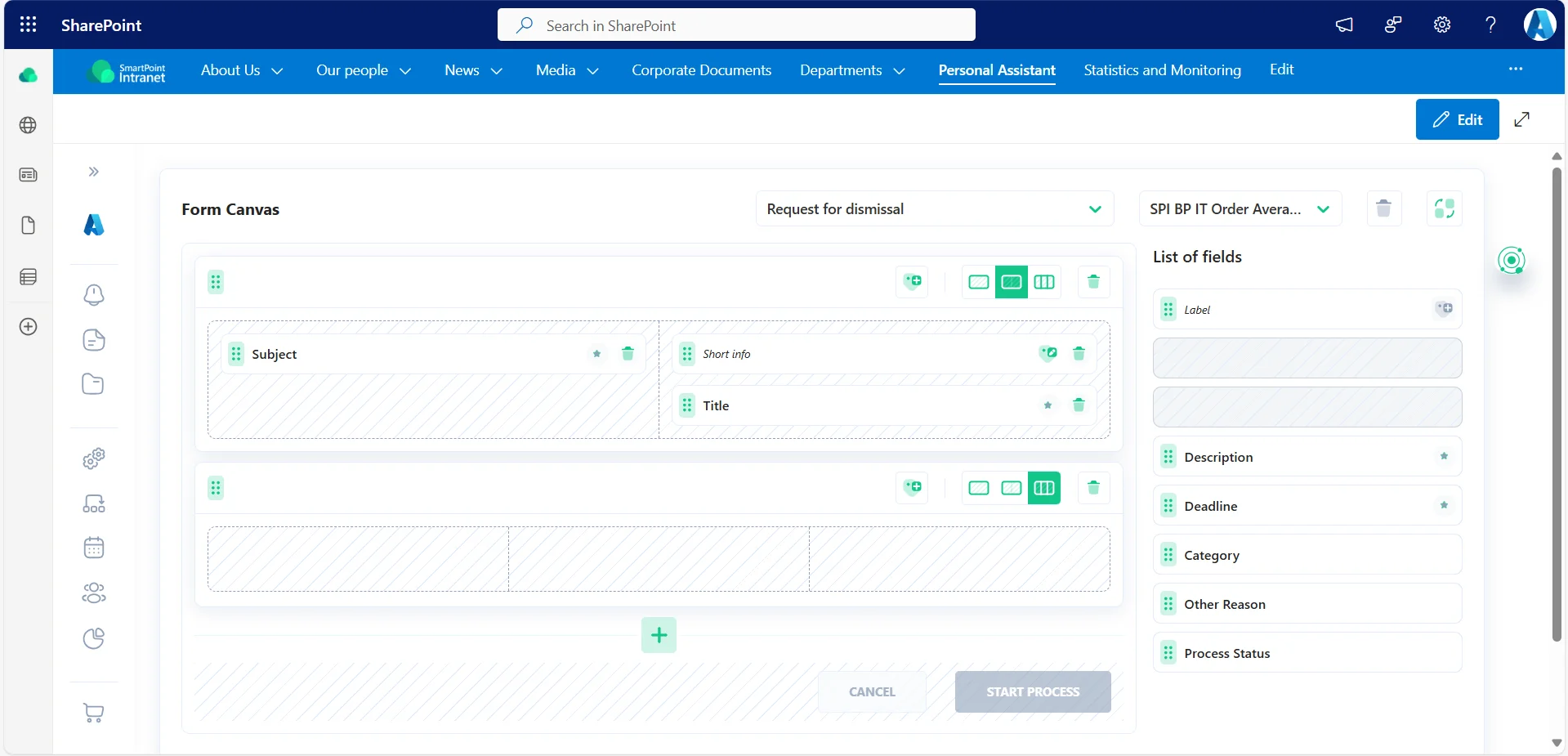
We have implemented another element of the Process Designer — the functional Form Builder. To enable administrators and business analysts to create their own form with a unique set of fields for use in process automation. To work with the Form Builder, no programming language knowledge is required, everything is handled through a user-friendly interface.
- How does it work?
To allow you to create forms with a unique set of fields, the Form Builder uses the concept of Content Type. Business analysts need to first create the necessary field set in SharePoint Online and then navigate to the builder page in the Personal Assistant.
Next, the form itself is created by adding sections, placing fields using drag-and-drop, and clicking the Preview button to see how the form will appear to users on a PC after integration into a process.
- Why is it useful?
This is a quick and convenient way to create the required number of forms for all the processes your company wants to automate. Now you don’t need to involve the development team to create or make changes to the form, the business analyst can do it independently.
The option to save Personal View in the Task Center has been added
- What was done?
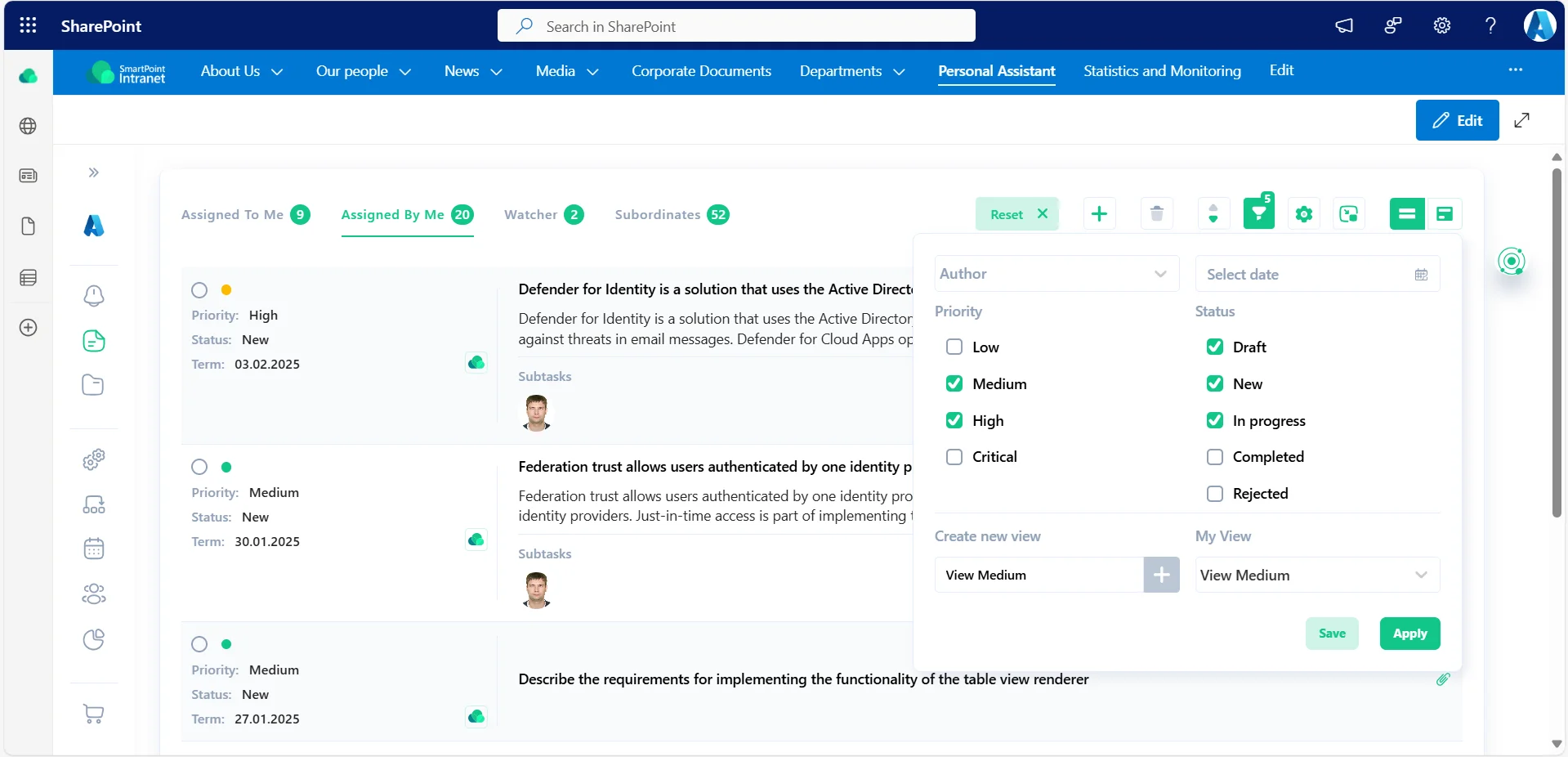
In the Task Center, we added the ability to save a set of filters for each user personally. Now each user can manage their settings in the filter panel and use the created views.
- How does it work?
A Task Center user opens the filter panel, selects the combinations they need, and saves these settings. You can name each of these settings. And, if necessary, make changes to both the name and the filter settings.
- How will it be useful?
Another convenient option for the Task Center customization. Personalized views will be especially useful for companies that have a large number of daily administrative tasks and need to quickly switch between filtered values.
New tasks are now automatically displayed in the Task Center without page refresh
- What was done?
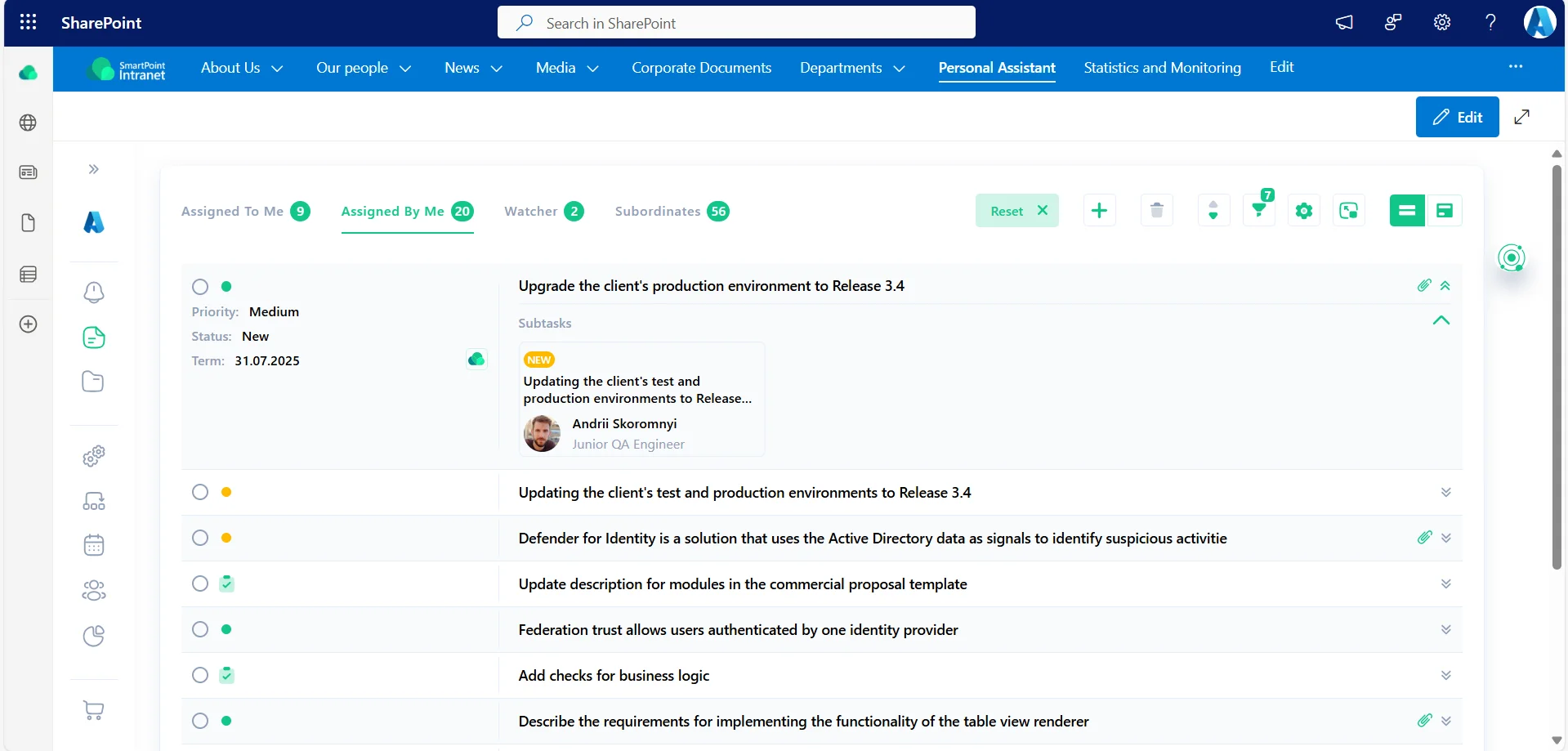
In order to quickly respond to new tasks and increase the speed of completing a large number of tasks, we have implemented automatic display of new tasks and changes in existing tasks in the Task Center without refreshing the page.
- How does it work?
Users can still work in the Task Center, but now they don’t need to refresh the page to see changes made to a task or to make sure that a new task has been created. We have simplified the scenarios of working with this module even more. All changes on the page are displayed in real time.
- How will it be useful?
This improvement facilitates operational work, adds speed and convenience when working with the Task Center. It is easy for the user to monitor the status of tasks.
The Checklist block has been added to the task form
- What was done?
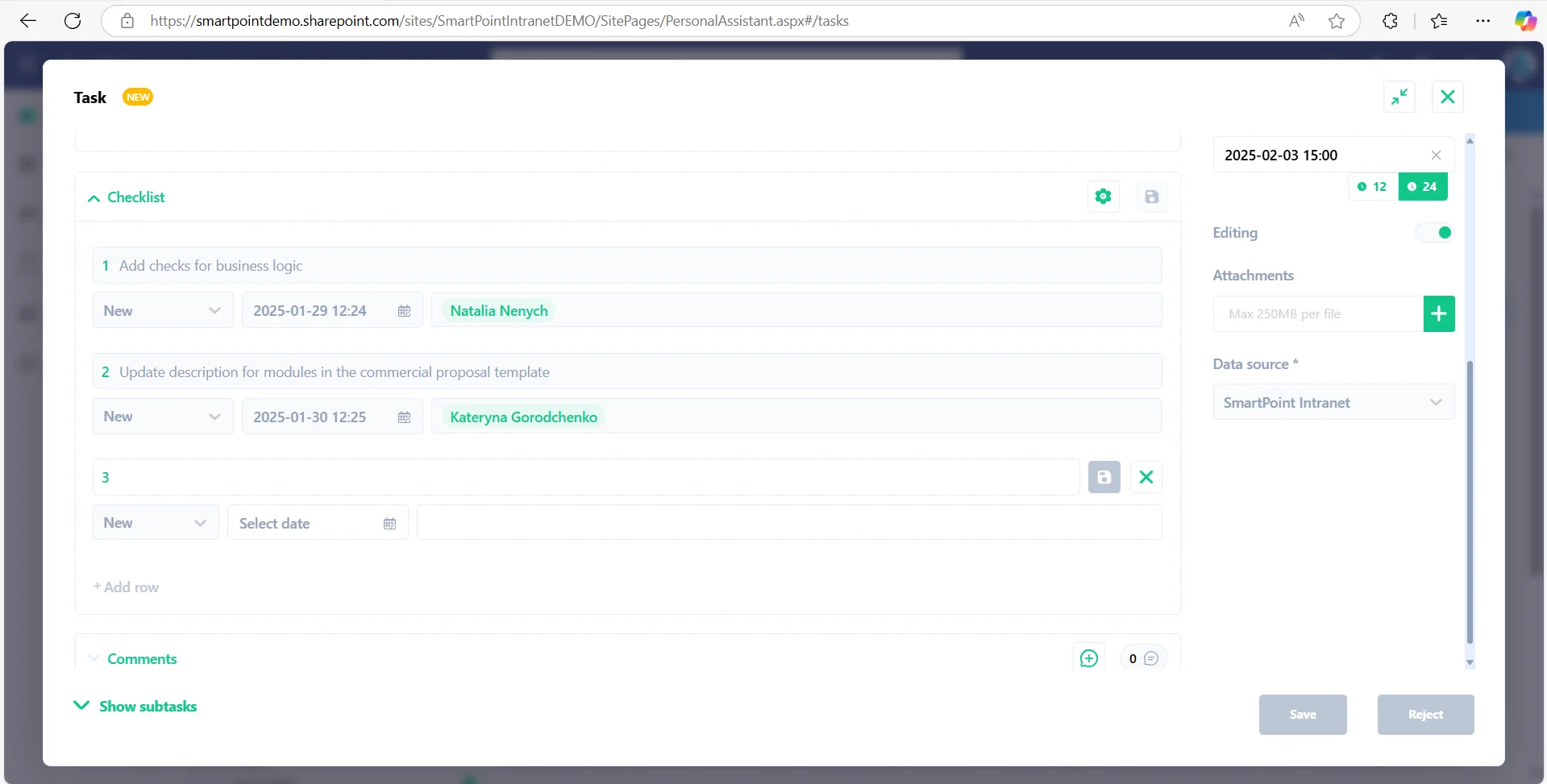
A separate Checklist block has been developed for the Advanced version of the Task Center. It allows you to create task items in the middle of a task and assign them to responsible people.
These points can represent a sequential list of actions needed to complete a task or preparatory steps before starting a task.
There is a logical relationship between the task and its checklist points: the date and time for completing a checklist point must not exceed the task’s completion date and time.
- How does it work?
To use the checklist functionality, the user must save the task in Draft status. Once saved, the Add Checklist button becomes active.
Next, the user fills out the checklist point fields and assigns them to an executor. The executor will see this task type in their Assigned to Me section of the Task Center.
- How will it be useful?
The addition of the Checklist block expands the usage scenarios for the Task Center. This block is particularly valuable for retail and manufacturing companies, as well as for processes requiring tracking of a clear sequence of small tasks assigned to different executors.
The Advanced comments block has been added to the task form
- What was done?
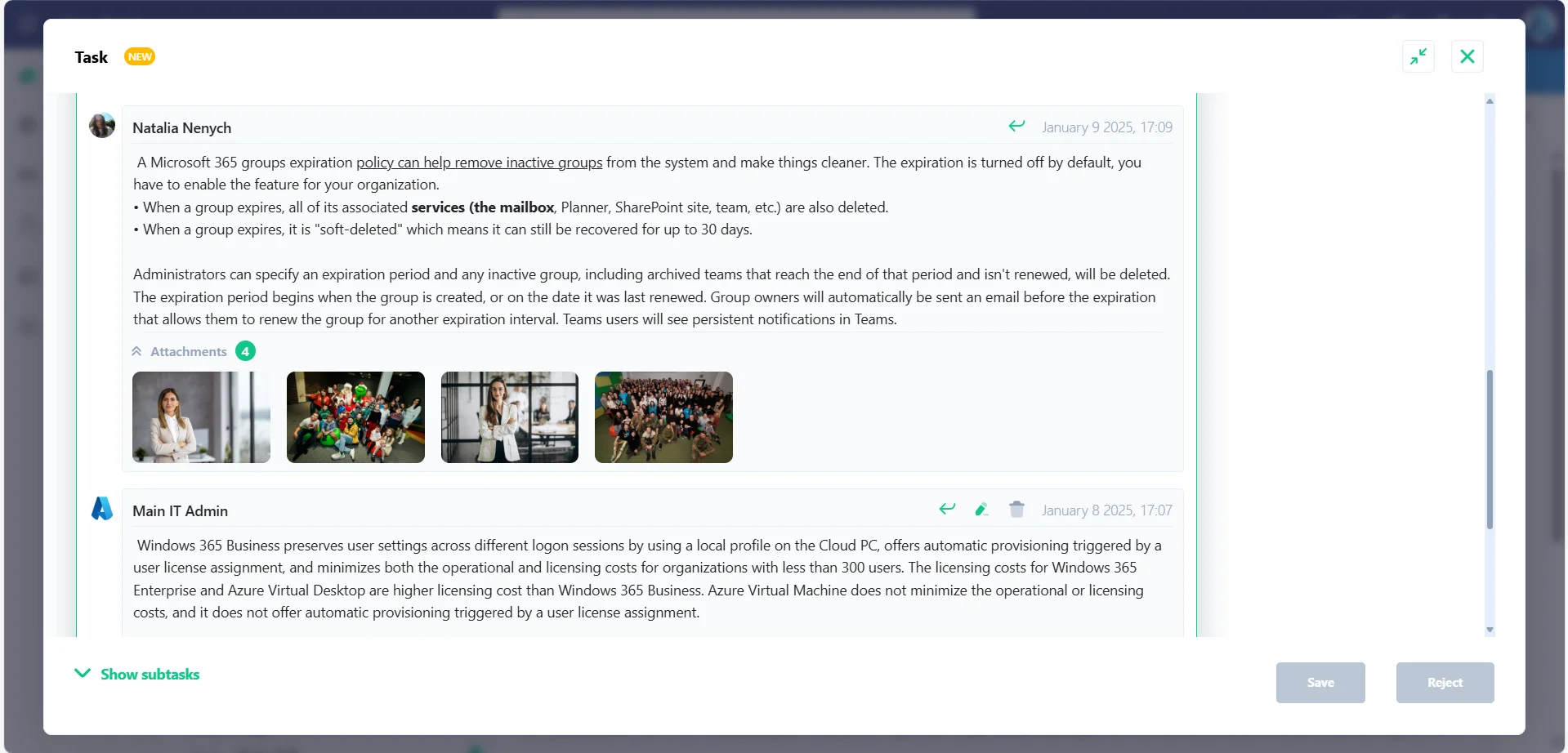
In addition to the Checklist block, this release introduced the Advanced Comments block. Users can now communicate about tasks and discuss issues directly within the task form, eliminating the need for separate chats or searching for message history in messengers.
In addition to the text editor, the user can also add images and screenshots.
A Comment Moderator role has been introduced, allowing the moderator to block comments that violate company policies.
- How does it work?
Similarly to Checklist, you need to save the task in the Draft status and the option to add a comment will become active.
The user can then access the text editor, upload images, and reply to or edit comments. Icon buttons with tooltips are available for all actions.
- Why is it useful?
Advanced Comments bring flexibility to the Task Center, enhancing user scenarios.
Task-related communication is a crucial element of task execution. Now, all communication is accessible directly from the task form without switching to messengers or losing message history.