


Release 3.7 includes enhancements across multiple blocks of the SmartPoint Intranet product.
The functionality of the HR module has been expanded with a convenient Contact Card Builder.
The mobile and tablet versions of the Personal Assistant pages have been fully updated.
The Form Builder now supports multiple use of the file upload field for any process.
The Task Center integration with Microsoft Planner reflects all recent updates in both tools.
All tabular views in the Task Center now display the task number and due date. The task form itself now includes a data refresh button.
The list of notifications in the Notification Center has been extended: users now receive instant alerts when they are mentioned in task comments.
Contact Card Builder Implemented in the HR Module
-
What was done?
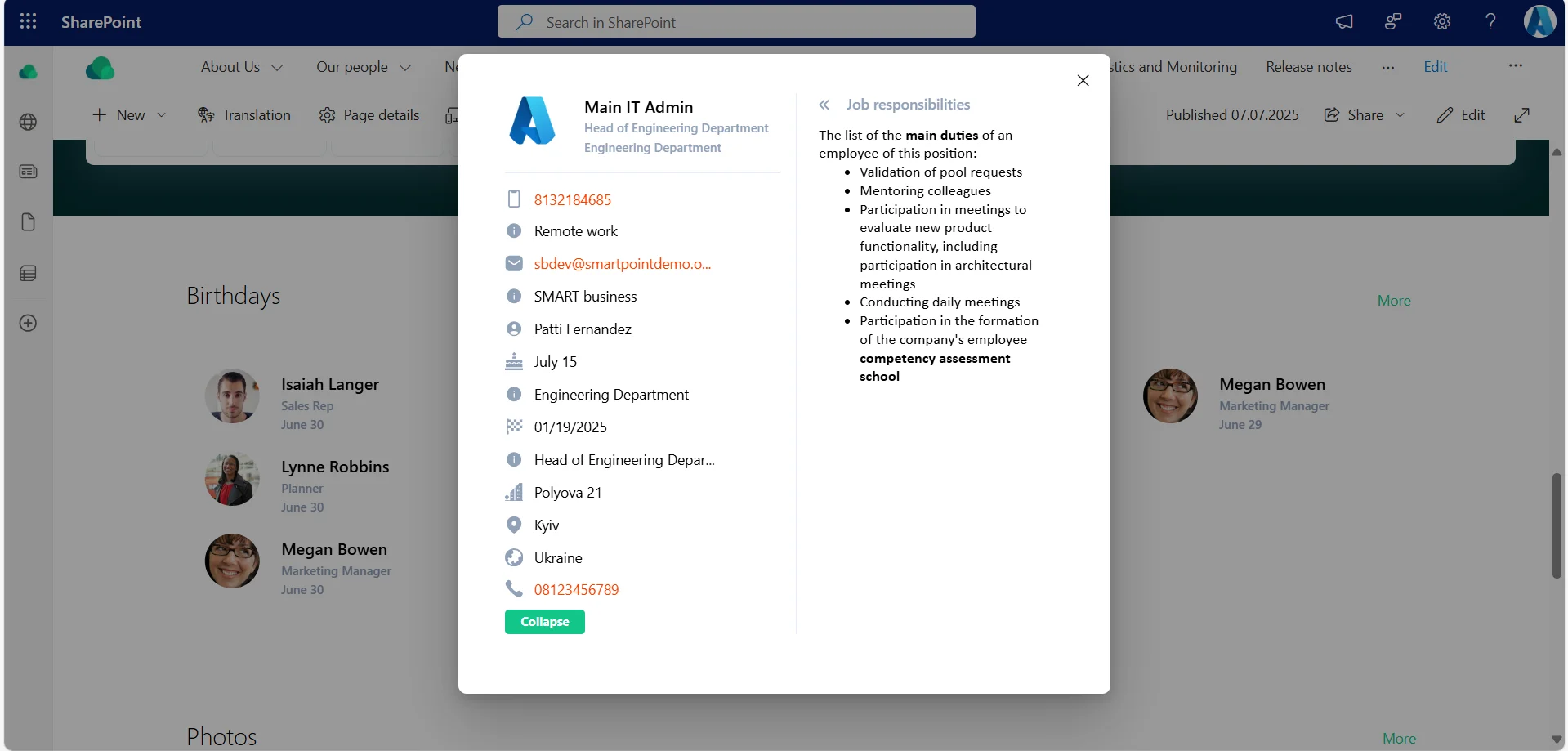
A convenient and functional builder was created, allowing business administrators to manage the number of fields displayed on the contact card across all web parts of the HR module.
The tool also enables expanding the overall list of fields by creating new ones.
-
How does it work?
To create a new custom field, the business administrator needs to open the Contacts list and follow a few simple steps:
- Enter a field name
- Select the field type
- Configure additional settings (optional)
Once all necessary fields are created and populated with data, the administrator can go to the settings list to define which fields should be displayed on the Contact Card and in what order.
-
Why is it useful?
This functionality offers greater flexibility to administrators, allowing them to independently configure which fields appear on the contact card — and in what order — without involving the development team.
They can also easily create custom fields tailored to the company’s needs and display them just as easily.
The saved changes are immediately applied across all HR module components: Horizontal and Vertical organizational structures (by department), Organizational structure by employee, Contact directory, General “Birthdays” page, Information blocks such as “New Employees” and “Birthdays”, the “Profile” section in the Personal Assistant, and the Contact Card in the Task Center.
Task Number, Due Date and Refresh Button Added to the Task Center


-
What was done?
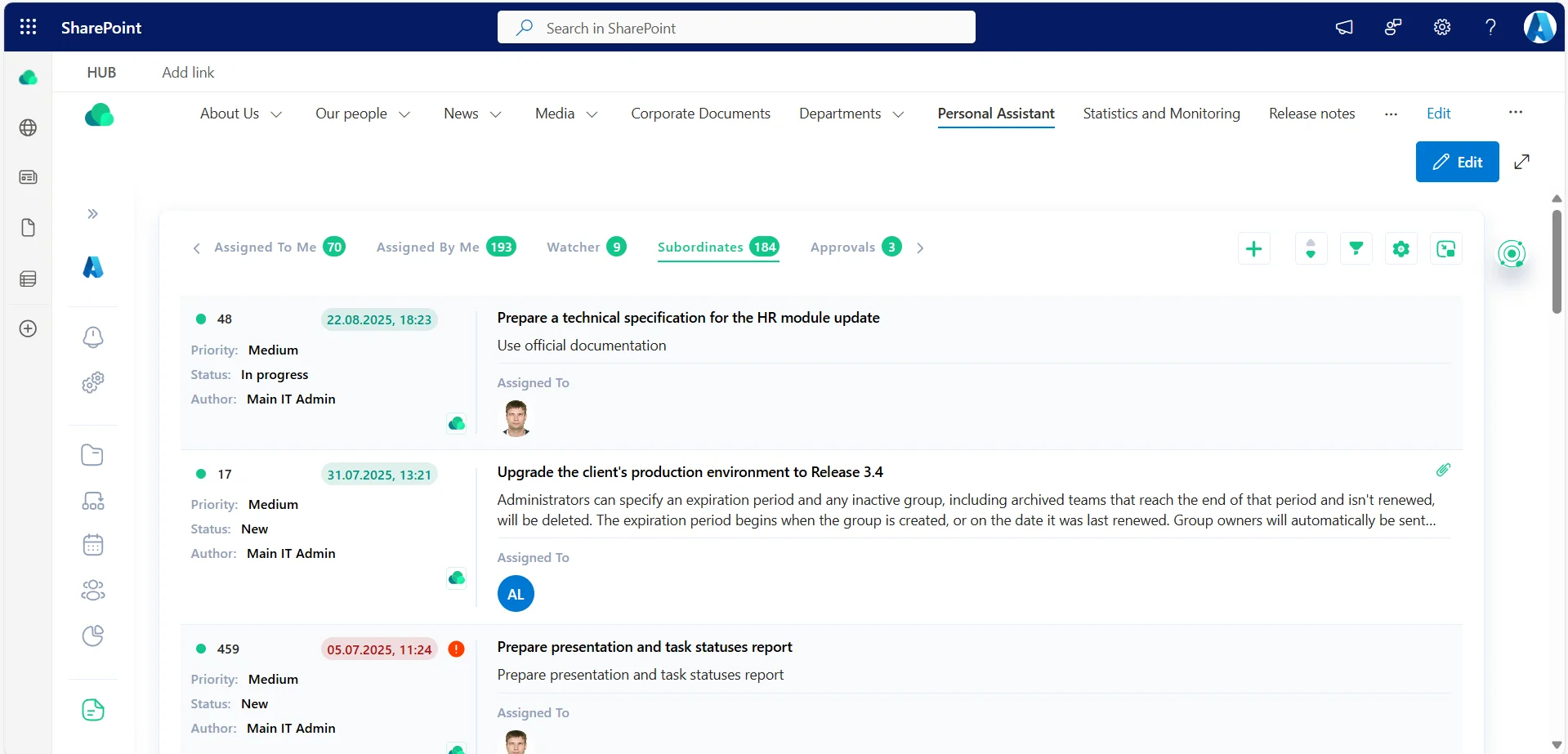
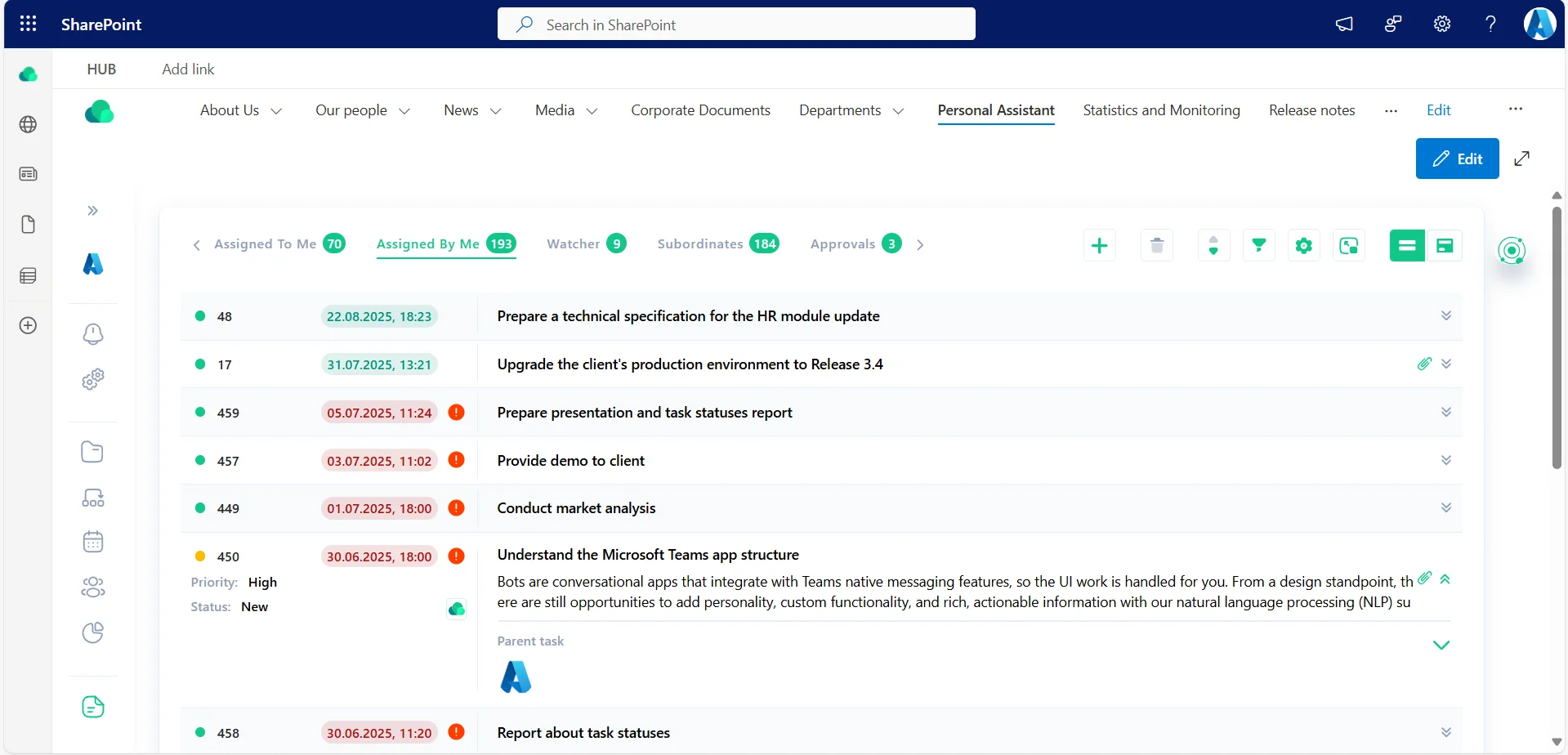
To enhance usability and task visibility, task numbers and due dates are now displayed across all Task Center views: Compact, Standard, and Kanban. Business administrators can also configure color highlighting for task due dates.
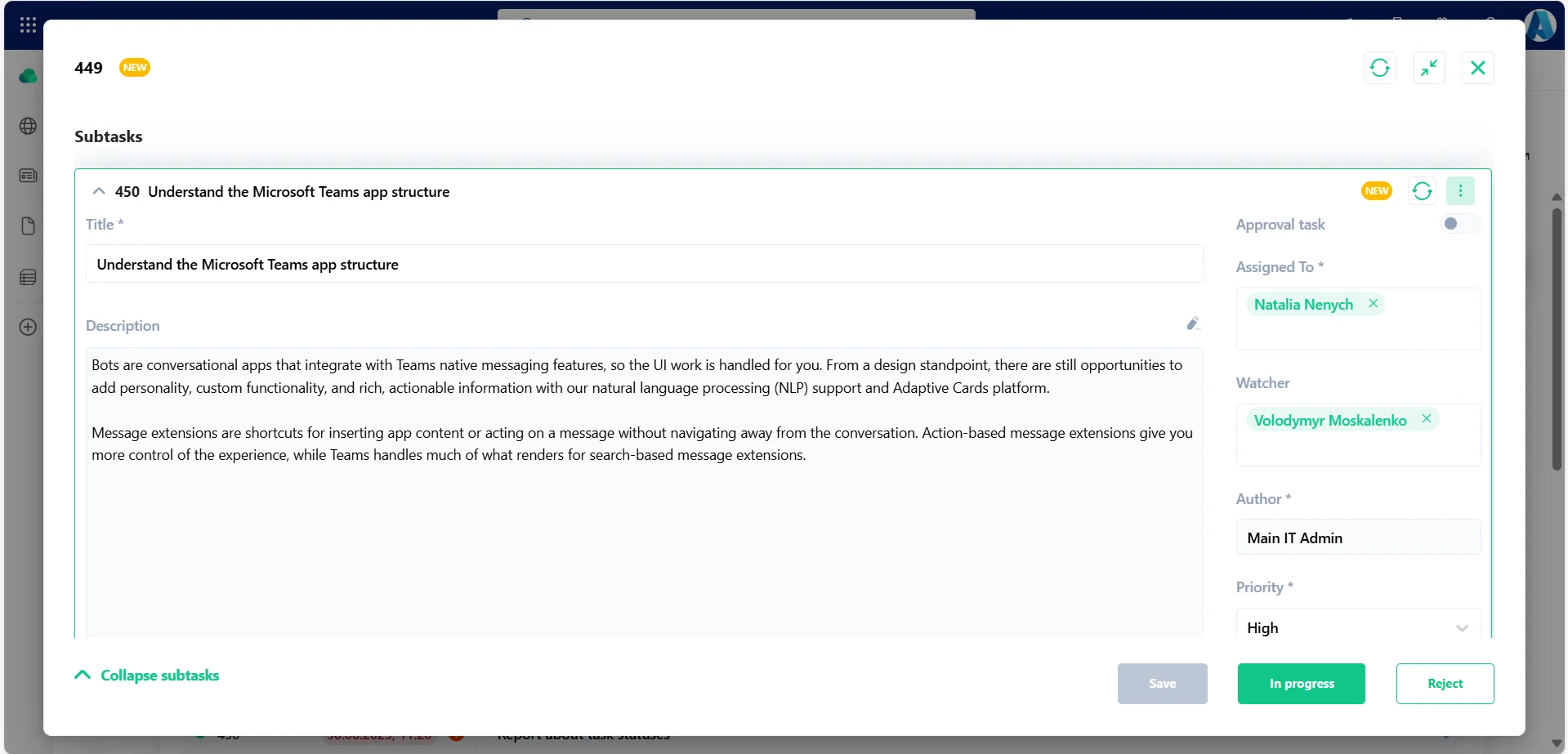
Task numbers are also shown on task forms, subtasks, and checklist items.
Another improvement is the addition of a refresh button on task forms. This button is available on the main task, each subtask, as well as in the “Checklist” and “Comments” sections.
-
How does it work?
Users can continue working in whichever task view they prefer. While reviewing task details, they can now also see the task number and a color-coded due date for better clarity.
The new Refresh button on all task form types makes collaboration more efficient: when multiple users are editing a task at the same time, clicking the button instantly updates the view with the latest changes.
For administrators, color configuration for due dates is quick and easy — just populate a predefined lookup list, and the changes will automatically apply for all users.
-
Why is it useful?
Displaying task numbers, visually highlighting due dates, and enabling fast data refresh directly from the task form significantly improves task management efficiency for a Task Center user —especially in fast-paced, high-volume environments.
The ability to configure the accent color for the “Due Date” field is another convenient SmartPoint Intranet feature, making customization possible without additional development.
Notification Triggered When a User is Mentioned in Task Comments
-
What was done?
The existing notification set has been expanded to include alerts sent to the Notification Center when a user is mentioned in a task comment.
-
How does it work?
As before, task-related communication takes place in the Comments section, which is available for every task regardless of its type. Now, users can mention a colleague in a comment to draw their attention to task details.
The mentioned user will receive an instant push notification and a corresponding message in the Notification Center, including a direct link to the task for quick access.
-
Why is it useful?
Expanding the list of notifications improves usability and helps users respond faster to updates. It also facilitates active collaboration — even with colleagues who are not directly assigned to the task.
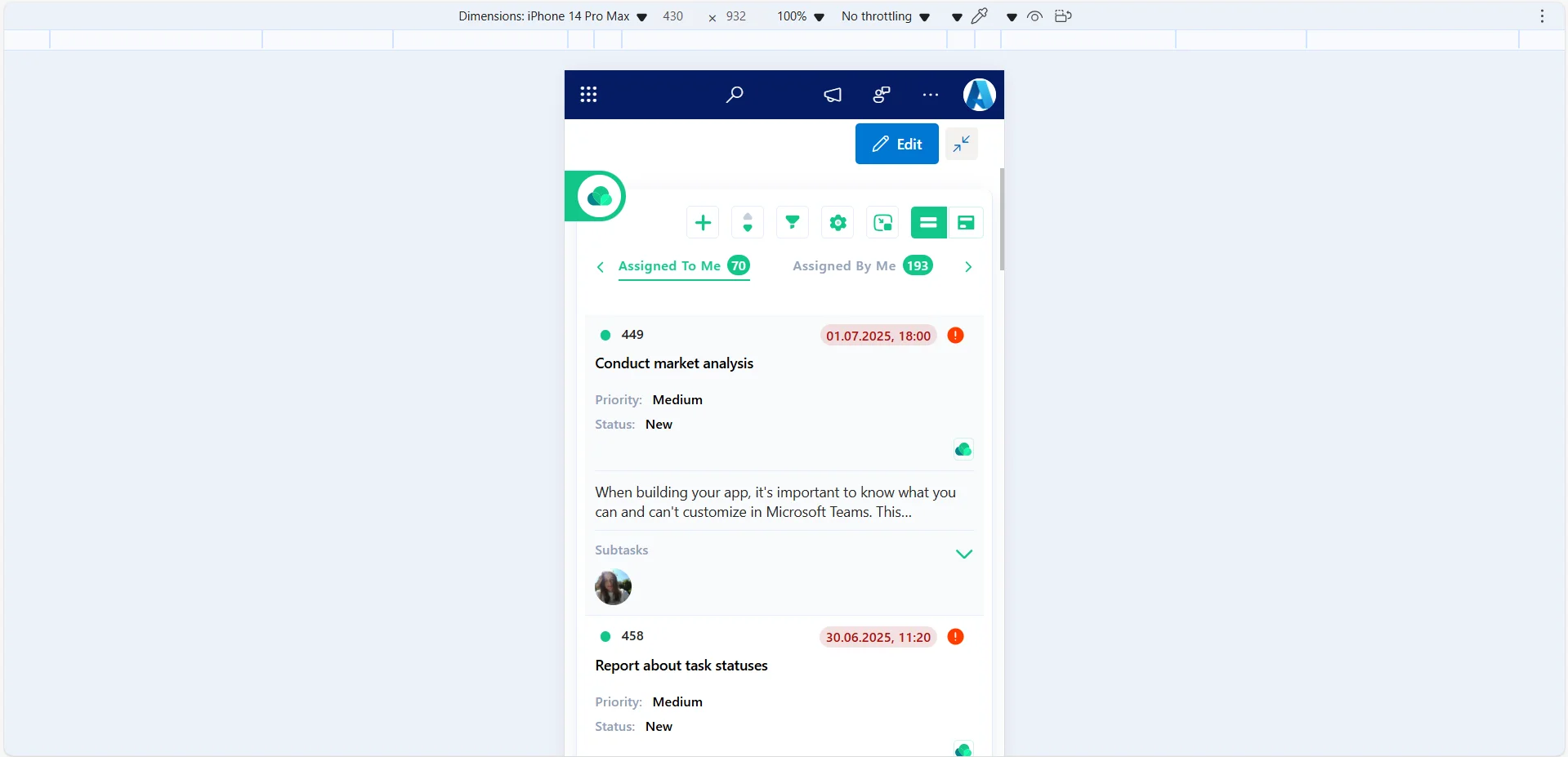
Mobile and Tablet Versions of the Personal Assistant Fully Updated
-
What was done?
The update of mobile and tablet versions for all Personal Assistant pages has been completed with no loss in functionality.
All pages are now adapted for various screen sizes.
-
How does it work?
Users can access the Personal Assistant from their smartphones or tablets and perform all familiar actions. There is no longer any difference in experience, regardless of the device being used.
-
Why is it useful?
The updated mobile and tablet versions provide greater flexibility and convenience.
Whether an employee is in a meeting, on a business trip, working remotely, or in a hybrid setting, they have full access to all processes, data, and tasks — just like in the desktop version of the intranet.
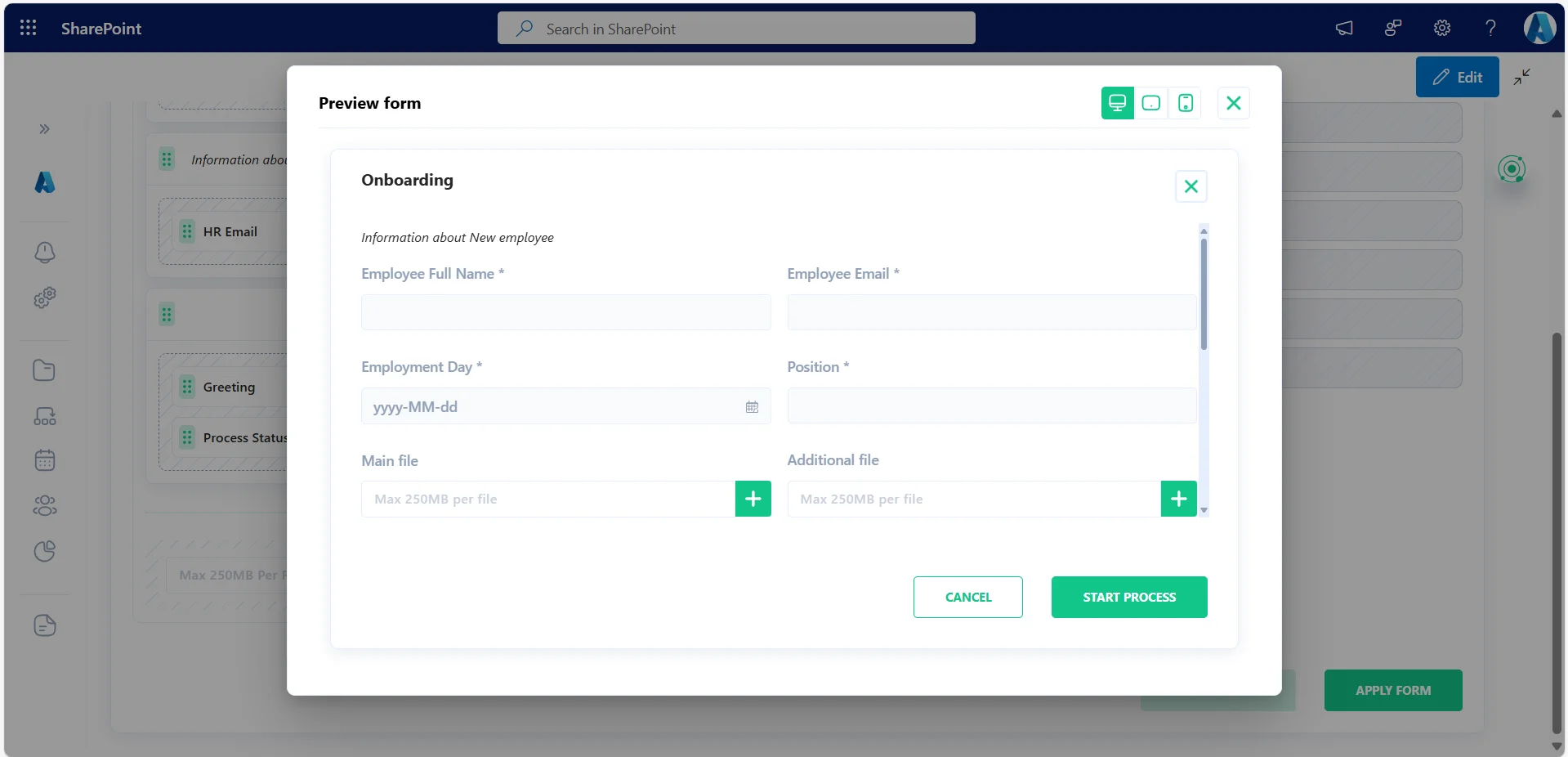
Added Support for Multiple File Upload Fields on a Single Process Form
-
What was done?
The Form Builder functionality has been expanded to support the repeated use of the file upload field within a single process initiation form. Now, one form can contain up to 10 file upload fields.
-
How does it work?
As before, a business administrator creates a process form using the Form Builder. The new enhancement allows the file upload field to be added to a section — or multiple sections — up to ten times. Each field can be given a unique name and set as required, if needed.
-
Why is it useful?
This update enables the creation of more complex process initiation forms with multiple sections containing file upload fields. It makes the Form Builder even more versatile, user-friendly, and feature-rich.
