


Release 4.1 introduces a range of enhancements designed to improve usability, increase system performance, and expand the functionality of the Personal Workspace. The key updates include a redesigned Knowledge Base and Favorites section, architectural improvements that enable horizontal scaling of the Personal Workspace, as well as usability enhancements for working with tasks, attachments, and comments.
Release 4.1 introduces a range of enhancements designed to improve usability, increase system performance, and expand the functionality of the Personal Workspace. The key updates include a redesigned Knowledge Base and Favorites section, architectural improvements that enable horizontal scaling of the Personal Workspace, as well as usability enhancements for working with tasks, attachments, and comments.
Below is a closer look at the main improvements included in this release.
Redesigned Knowledge Base and Enhanced Favorites Functionality
- What has been done?
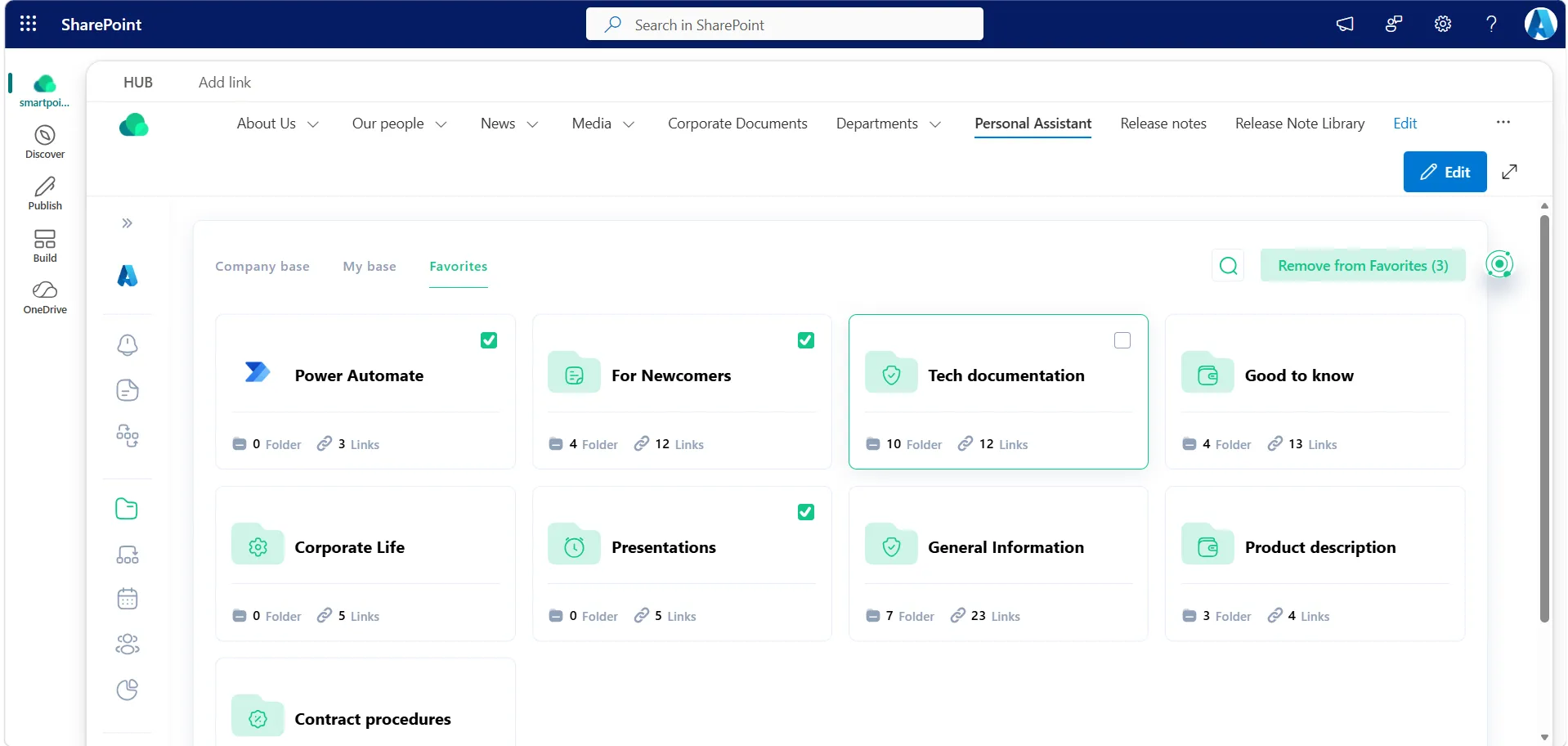
The Knowledge Base has been redesigned, and the Favorites section has been enhanced with new functionality. The visual updates have been applied across all three sections: Corporate Knowledge Base, Personal Knowledge Base, and Favorites. The interface is now cleaner and more compact while preserving the familiar and intuitive navigation users are accustomed to.
The category tree creation form has also been improved and now supports two display modes: Standard and Expanded. The Favorites section now supports bulk removal of saved cards, while adding categories to Favorites has become more convenient thanks to updated interface interactions.
- How does it work?
Users can choose the most suitable size for the category tree creation form depending on their screen size and personal preferences. The Favorites section now allows multiple cards to be removed simultaneously, making it much easier to manage saved content.
When users hover over a category card, a star icon is displayed, allowing the category to be added to Favorites. This approach keeps secondary interface elements hidden until they are needed, resulting in a cleaner workspace.
- Why is it useful?
The updated design makes working with the Knowledge Base more convenient, particularly when managing large amounts of content. The ability to switch between Standard and Expanded modes allows users to make better use of screen space, whether they are working on smaller displays or large monitors.
The new Favorites capabilities simplify the management of saved categories, while displaying secondary interface elements only when needed creates a cleaner, more modern user experience.
Improved scalability for high workloads and large volumes of data
- What has been done?
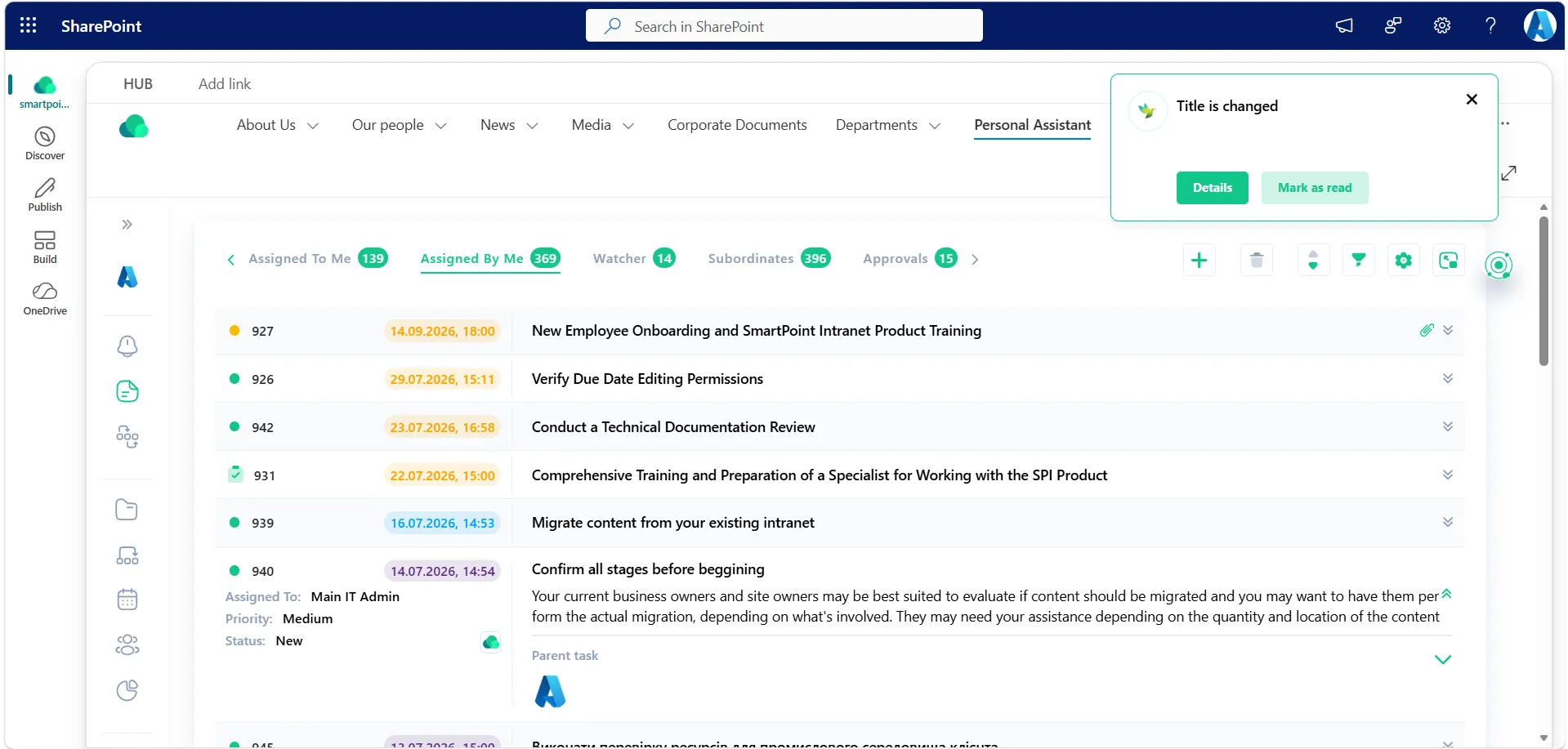
This release introduces significant architectural improvements to the SmartPoint Intranet core, enabling the system to efficiently process large volumes of data while supporting a high number of concurrent users. For example, the Task Center is now capable of processing more than 30,000 tasks per day while supporting over 4,000 concurrent users.
These improvements are designed to dynamically increase system performance, stability, and scalability as workloads grow in real time.
- How does it work?
The updated architecture enables the system to process larger volumes of tasks, notifications, and running workflows more efficiently. The product now supports horizontal scaling at the Microsoft Azure infrastructure level, allowing system performance to remain consistently high even when many users work simultaneously.
As a result, the system remains fast and stable as both the number of users and the volume of data continue to grow.
- Why is it useful?
These improvements are particularly valuable for organizations that rely heavily on tasks, notifications, and workflow automation. The updated architecture provides a strong performance foundation for future system growth while reducing the risk of bottlenecks as workloads increase.
For organizations implementing SmartPoint Intranet gradually — starting with individual departments before rolling it out company-wide — these architectural improvements provide a reliable foundation for scaling without compromising system performance or user experience.
Improved User Experience for Adding Attachments and Posting Task Comments
- What has been done?
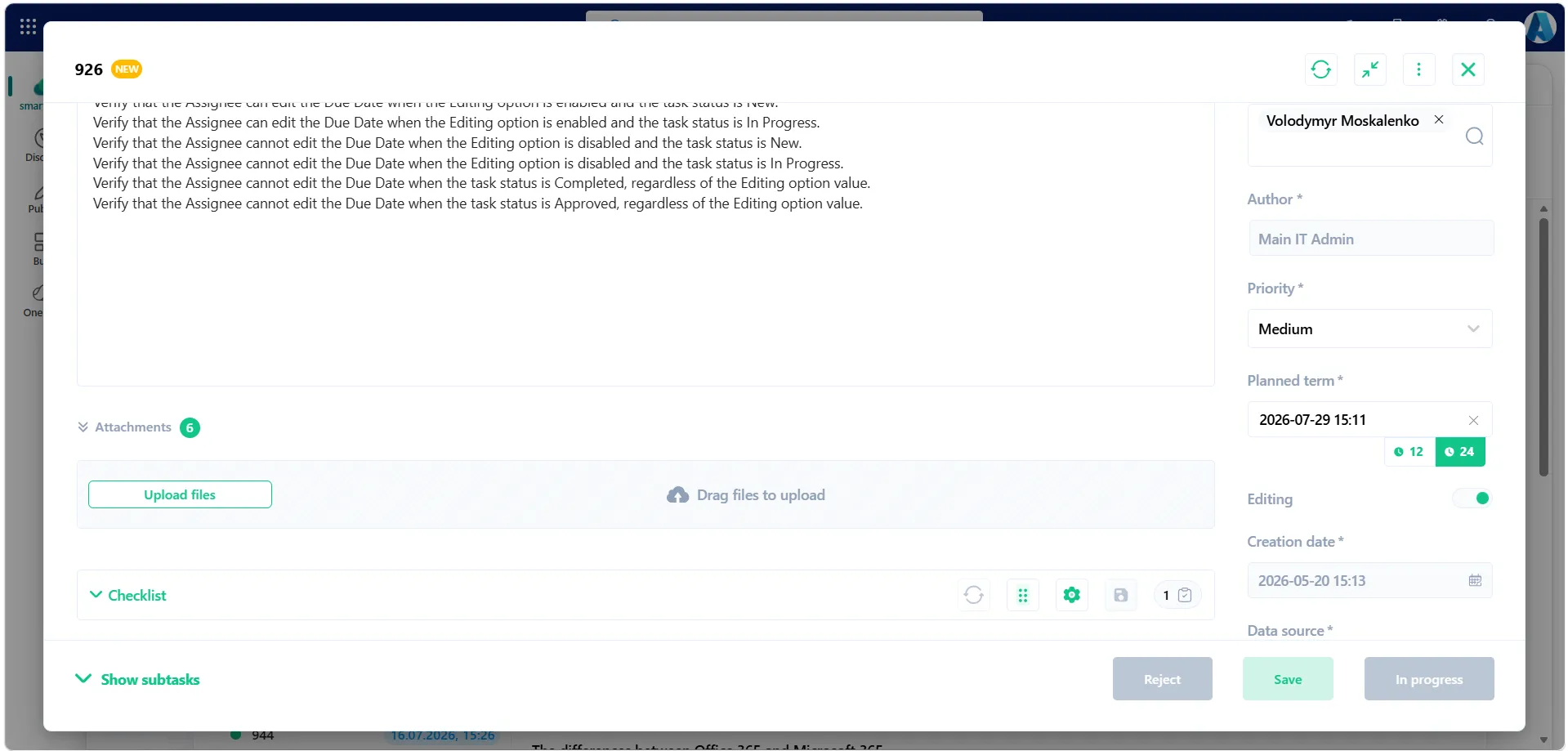
The attachment area within tasks and the comments section has been redesigned. In addition, the Send Comment button has been updated to make it more prominent and visually distinctive.
These changes are aimed at improving the user interface and making it more convenient to work with tasks and comments.
- How does it work?
The redesigned attachment area provides a more intuitive and streamlined way to add files to both tasks and comments. The improved layout makes it easier for users to locate and interact with attachment-related controls.
The Send Comment button is now more visible within the form, making it easier for users to submit comments while working with tasks.
- Why is it useful?
The updated interface makes working with tasks and comments more intuitive and comfortable. Users can locate the required interface elements more quickly and perform common task-related actions with less effort.
These improvements contribute to a better overall user experience, provide a more modern interface, and make everyday work with the Task Center even more efficient.
New Capabilities for the Observer Role in the Task Center
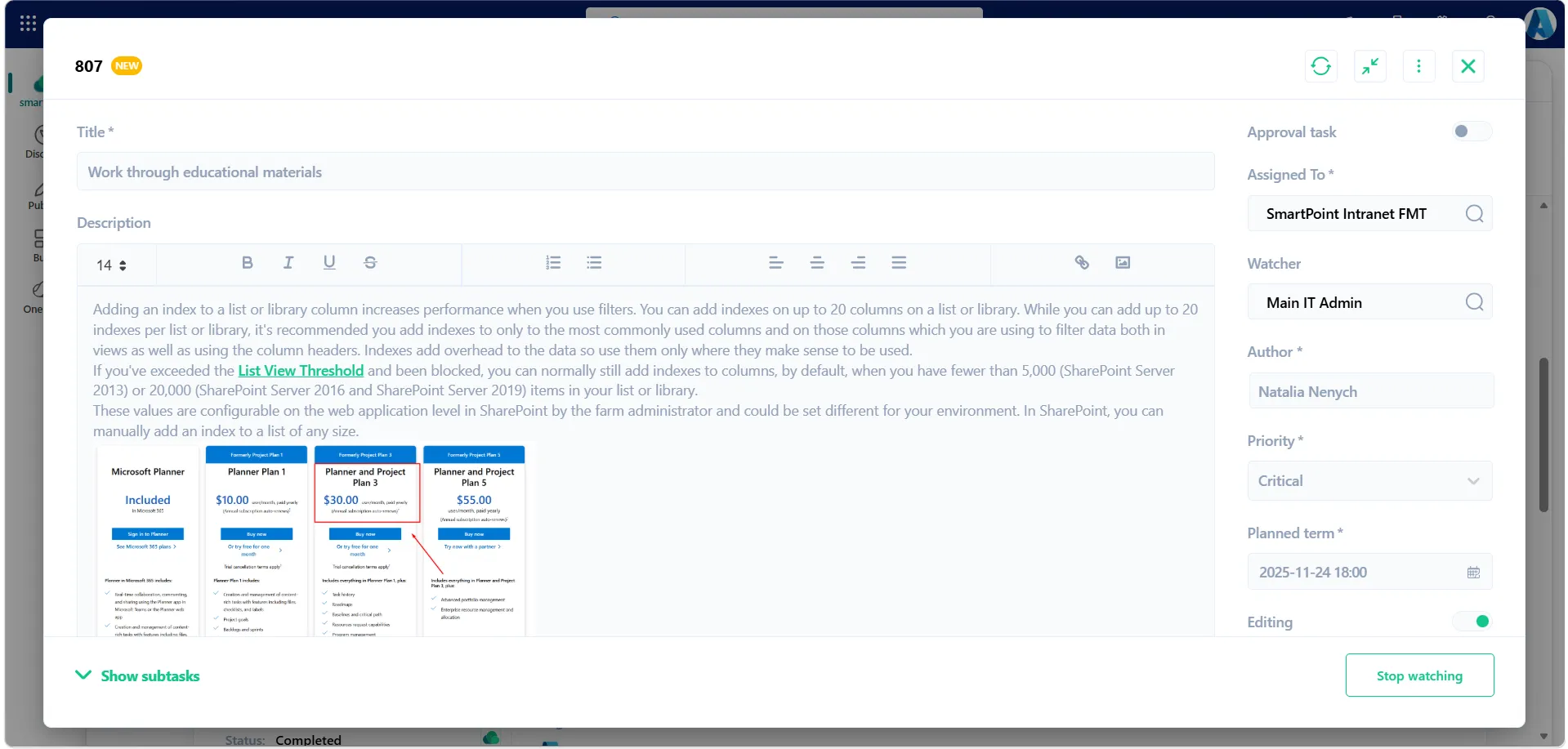
- What has been done?
This release introduces a new Stop Watching action on the task form. The feature is designed specifically for users assigned the Observer role who no longer need to monitor a task or whose participation in the task has already been completed.
Users can now stop watching a task independently without requiring assistance from a system administrator.
- How does it work?
When users select Stop Watching, they are automatically removed from the Observers field. From that point onward, they no longer receive notifications associated with the Observer role for that task.
The entire process is performed directly from the task form and requires no additional configuration or administrator involvement.
- Why is it useful?
The new functionality gives users greater flexibility in managing their participation in tasks. Employees can independently decide which tasks they want to continue monitoring and which they no longer need to follow once their involvement is complete.
This helps reduce unnecessary notifications, keeps the list of observers up to date, and improves overall user convenience. It also gives employees greater control over their own notification preferences without having to wait for assistance from an administrator or technical support.
